


Find resources:
Loading
Answer
Many of our resources are sets of resizable images (picture files) which are designed to allow you to change the size of them before printing to suit your needs. You will need a good word processor or desktop publishing program such as Microsoft Publisher, Microsoft Word or Open Office (which can be downloaded free from here).
Below are instructions for using Microsoft Word, Microsoft Publisher and Open Office.
Many of our resources are sets of resizable images (picture files) which are designed to allow you to change the size of them before printing to suit your needs. You will need a good word processor or desktop publishing program such as Microsoft Publisher, Microsoft Word or Open Office (which can be downloaded free from here).
Below are instructions for using Microsoft Word, Microsoft Publisher and Open Office.
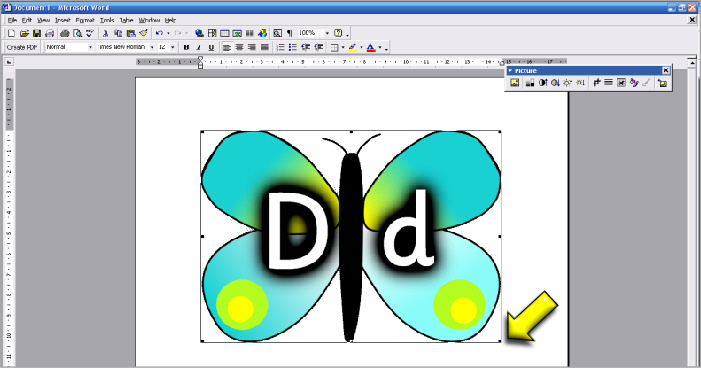
6. Click on the image and use the ‘handles’ (indicated by the yellow arrow above) to resize the image to the size you want.
7. You can then add more images to the page as required, before printing in the normal way.
7. You can then add more images to the page as required, before printing in the normal way.
Using Microsoft Word
(This may differ slightly depending on which version you are using).
1. Ensure that the images are fully ‘extracted’ from the ZIP that you downloaded them in. (Click here for more help with this).
2. Open a new blank document in Word.
3. Click the ‘Insert’ menu and select ‘Picture’ and then ‘From file...’.
4. Locate the images on your computer and select one. Then click the ‘Insert’ or ‘OK’ button.
5. The image will appear in your Word document, ready to be resized (see example below).
(This may differ slightly depending on which version you are using).
1. Ensure that the images are fully ‘extracted’ from the ZIP that you downloaded them in. (Click here for more help with this).
2. Open a new blank document in Word.
3. Click the ‘Insert’ menu and select ‘Picture’ and then ‘From file...’.
4. Locate the images on your computer and select one. Then click the ‘Insert’ or ‘OK’ button.
5. The image will appear in your Word document, ready to be resized (see example below).
Using Microsoft Publisher
(This may differ slightly depending on which version you are using).
1. Ensure that the images are fully ‘extracted’ from the ZIP that you downloaded them in. (Click here for more help with this).
2. Open a new blank publication in Publisher.
3. Click the ‘Insert’ menu and select ‘Picture’ and then ‘From file...’.
4. Locate the images on your computer and select one. Then click the ‘Insert’ or ‘OK’ button.
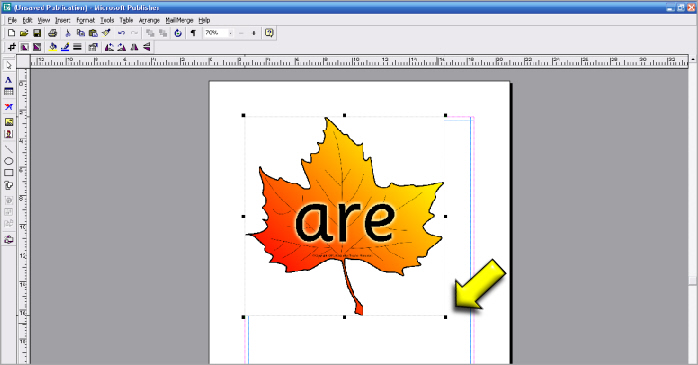
5. The image will appear in your publication, ready to be resized (see example below).
(This may differ slightly depending on which version you are using).
1. Ensure that the images are fully ‘extracted’ from the ZIP that you downloaded them in. (Click here for more help with this).
2. Open a new blank publication in Publisher.
3. Click the ‘Insert’ menu and select ‘Picture’ and then ‘From file...’.
4. Locate the images on your computer and select one. Then click the ‘Insert’ or ‘OK’ button.
5. The image will appear in your publication, ready to be resized (see example below).
6. Click on the image and use the ‘handles’ (indicated by the yellow arrow above) to resize the image to the size you want.
7. You can then add more images to the page as required, before printing in the normal way.
7. You can then add more images to the page as required, before printing in the normal way.
Using Open Office (download free from http://download.openoffice.org/)
(This may differ slightly depending on which version you are using).
1. Ensure that the images are fully ‘extracted’ from the ZIP that you downloaded them in. (Click here for more help with this).
2. Open a new blank publication in Open Office Writer.
3. Click the ‘Insert’ menu and select ‘Picture’ and then ‘From file...’.
4. Locate the images on your computer and select one. Then click the ‘Insert’ or ‘OK’ button.
5. The image will appear in your publication, ready to be resized (see example below).
(This may differ slightly depending on which version you are using).
1. Ensure that the images are fully ‘extracted’ from the ZIP that you downloaded them in. (Click here for more help with this).
2. Open a new blank publication in Open Office Writer.
3. Click the ‘Insert’ menu and select ‘Picture’ and then ‘From file...’.
4. Locate the images on your computer and select one. Then click the ‘Insert’ or ‘OK’ button.
5. The image will appear in your publication, ready to be resized (see example below).
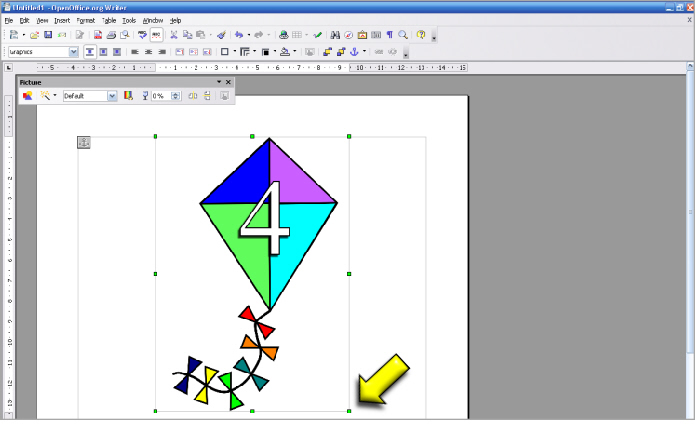
6. Click on the image and use the ‘handles’ (indicated by the yellow arrow above) to resize the image to the size you want.
7. You can then add more images to the page as required, before printing in the normal way.
7. You can then add more images to the page as required, before printing in the normal way.
How do I resize images before printing?